“claude: command not found”
Close the Terminal or PowerShell window and open a new one, then try again. If it still isn't found, see Anthropic's install troubleshooting.
 GuruHat
Being signed in to the Claude app isn't enough. The Claude desktop app, claude.ai
in your browser, and Claude Code in Terminal each keep their own sign-in, and AI Meter
can only read the one from Terminal (the claude command). So if AI Meter
shows AI — or says “No Claude Code sign-in found”, sign in once more from
Terminal with the steps below, even if you're already signed in to the app. It takes
about 3 minutes. Other problems are covered
further down.
Mac: press ⌘ Space, type Terminal and press Return.
Windows: open the Start menu, type PowerShell and press Enter.
Already installed? Type claude --version. If it prints a version
number, skip to step 3. Otherwise, paste the command for your computer and press Return.
curl -fsSL https://claude.ai/install.sh | bash
irm https://claude.ai/install.ps1 | iex
The installer shows no progress while it downloads. When it's done, close the
window and open a new one so the claude command is found. Prefer a
package manager? brew install --cask claude-code on a Mac or
winget install Anthropic.ClaudeCode on Windows also work. See
Anthropic's setup guide for other options.
claude and pick a text styleclaude
The first time, Claude Code asks how its text should look. Any choice is fine. Move with the arrow keys and press Return.
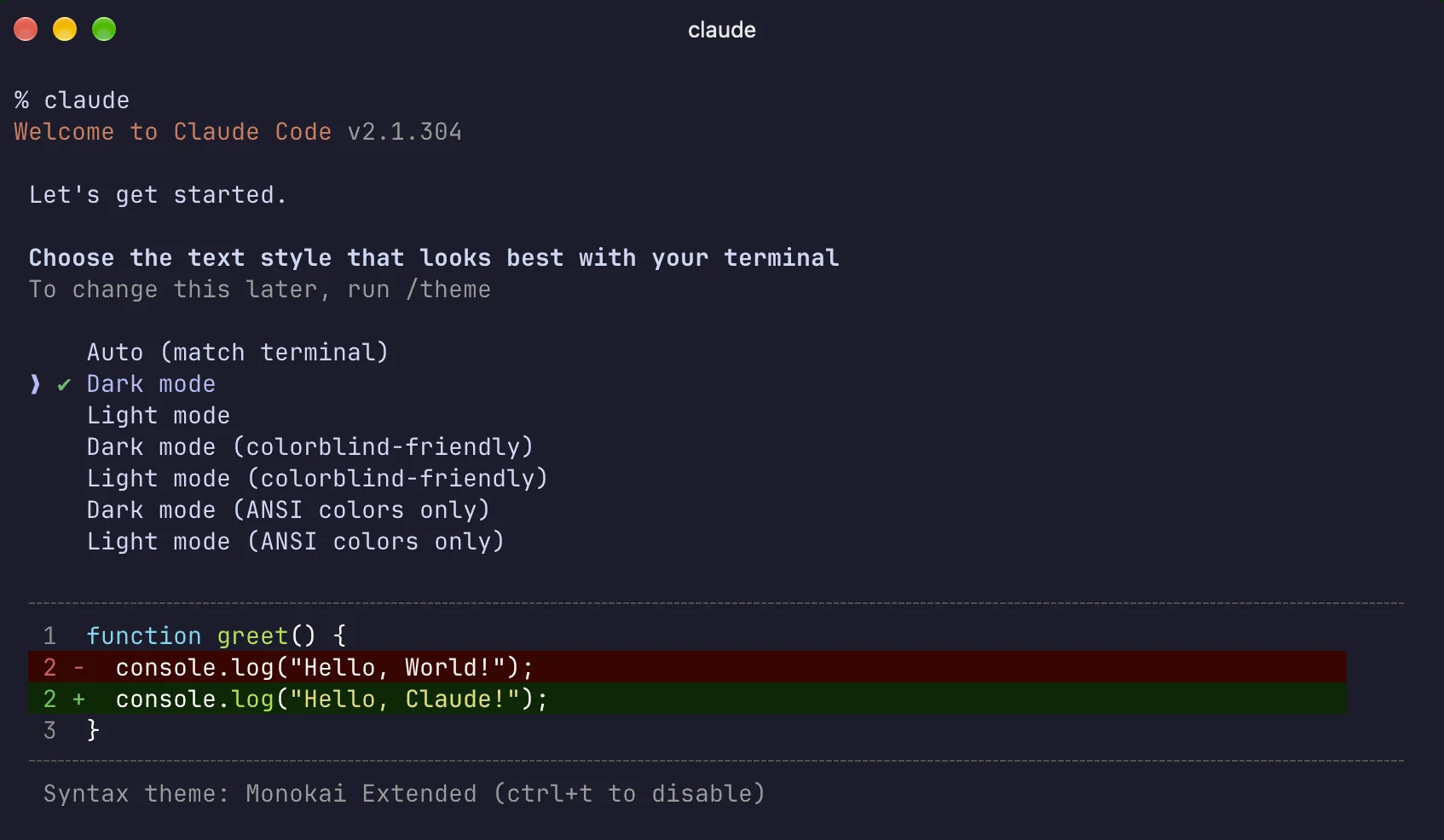
/theme.Leave option 1 selected and press Return. That's the one AI Meter can read.
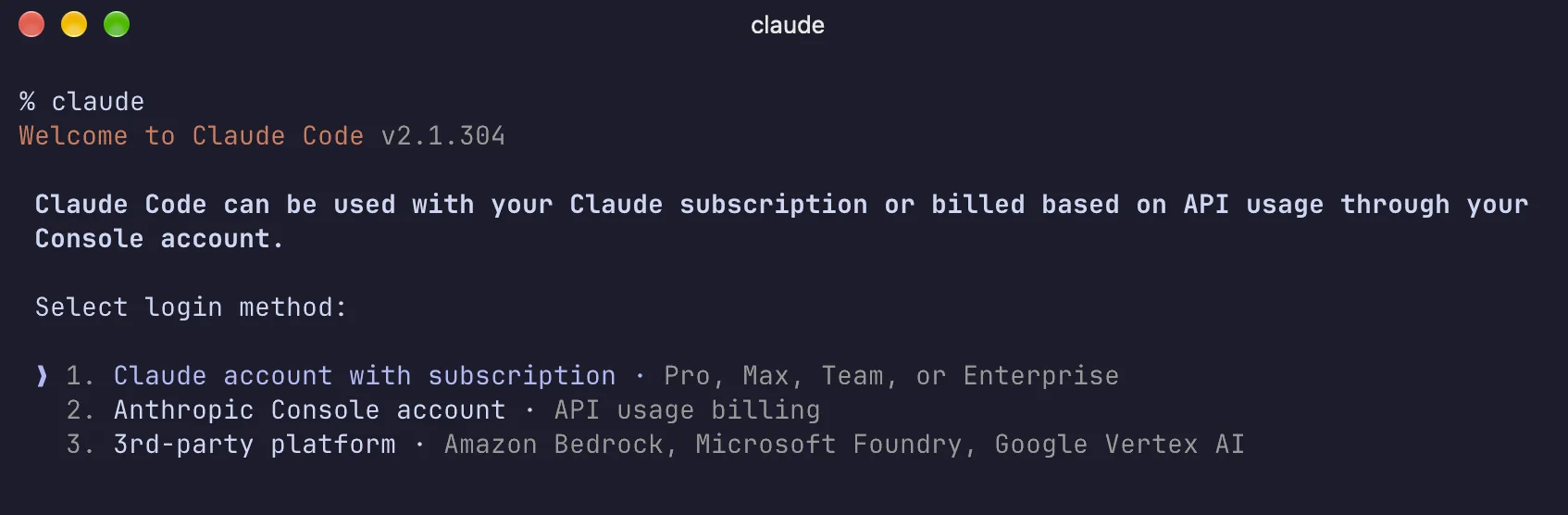
Don't pick “Anthropic Console account”. That bills each request to an API account and has no five-hour usage window, so AI Meter has nothing to show.
Your browser opens a Claude page. Sign in if it asks, then click Authorize.
If no browser opens, Terminal shows a link. Copy it into your browser yourself. If the page then shows a code, paste the code back into Terminal and press Return.
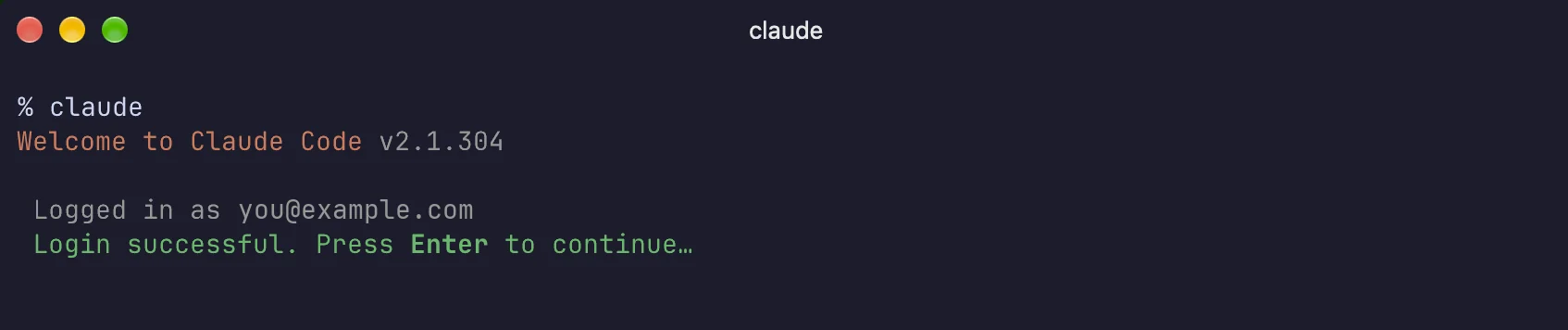
Back in Terminal you'll see Login successful. Press Return. Claude Code may
ask a few more first-run questions, and you can accept the defaults. To leave, type
/exit and press Return.
Click AI — in the Mac menu bar or on the Windows taskbar, choose Claude, and click refresh. Your remaining usage appears within a few seconds.
On a Mac, macOS asks once whether AI Meter can use the
Claude Code-credentials Keychain item. Choose Always Allow so it
doesn't ask again.
Close the Terminal or PowerShell window and open a new one, then try again. If it still isn't found, see Anthropic's install troubleshooting.
Claude Code renews its sign-in only while it runs. AI Meter tries to renew it in the background. If that fails, run claude once and then /exit.
Run claude, type /login and choose Claude account with subscription again. AI Meter picks up the new account on its next refresh.
Check that Claude is selected in AI Meter, and that you signed in with the same user account that runs AI Meter. On a Mac, if you clicked Deny at the Keychain prompt, quit and reopen AI Meter to see it again.
For the Codex provider, AI Meter reads the ChatGPT sign-in the Codex CLI saves in
.codex/auth.json in your home folder. Install the CLI with
npm install -g @openai/codex (or brew install codex on a Mac),
run codex, and choose Sign in with ChatGPT. Then choose
Codex in AI Meter and click refresh.
Your remaining usage now stays in the menu bar or tray, with the time it resets.
Back to AI Meter