
How to check your Android phone for spyware with ADB and an AI assistant
Short answer: turn on USB debugging on the phone, plug it in, and paste one prompt into an AI assistant that can run terminal commands. The assistant installs ADB, checks the connection, runs a read-only audit of your apps, permissions, system integrity and network, and writes a report with the exact command behind every finding.
You only do the parts that need your hands on the phone. It takes about 10 minutes and installs nothing on the phone. It is a good first pass, not a guarantee. What it can't see is listed below.
Written by GuruHat. Tested on a Samsung Galaxy S22 running Android 16 (One UI 8). Other phones use the same steps; only the menu names differ.
Who does what
| You (on the phone) | The AI assistant (on your computer) |
|---|---|
| Turn on Developer options and USB debugging | Installs ADB if it's missing (you approve the command) |
| Plug in the USB cable | Checks the connection and fixes common errors |
| Tap Allow on the "Allow USB debugging?" prompt | Runs the read-only audit, phase by phase |
| Approve each command it asks to run | Writes the report and saves it as a file |
| Switch USB debugging off and revoke authorizations when done | Tells you exactly what to switch off |
No assistant can do the phone steps for you: Android only lets you turn on debugging and approve a computer by hand on the phone. That is a safety feature: it stops apps and strangers from switching debugging on for you.
What you need
- An Android phone and a USB cable that carries data (some cables only charge).
- A Mac, Windows or Linux computer.
- An AI assistant that can run terminal commands and ask you before each one, such as Claude Code or Codex.
Step 1: Turn on Developer options
Android hides its developer menu until you ask for it.
- Open Settings → About phone.
- On a Samsung phone, tap Software information. On a Pixel, stay on About phone.
- Tap Build number seven times in a row. Enter your PIN if asked. A message says Developer mode has been turned on.
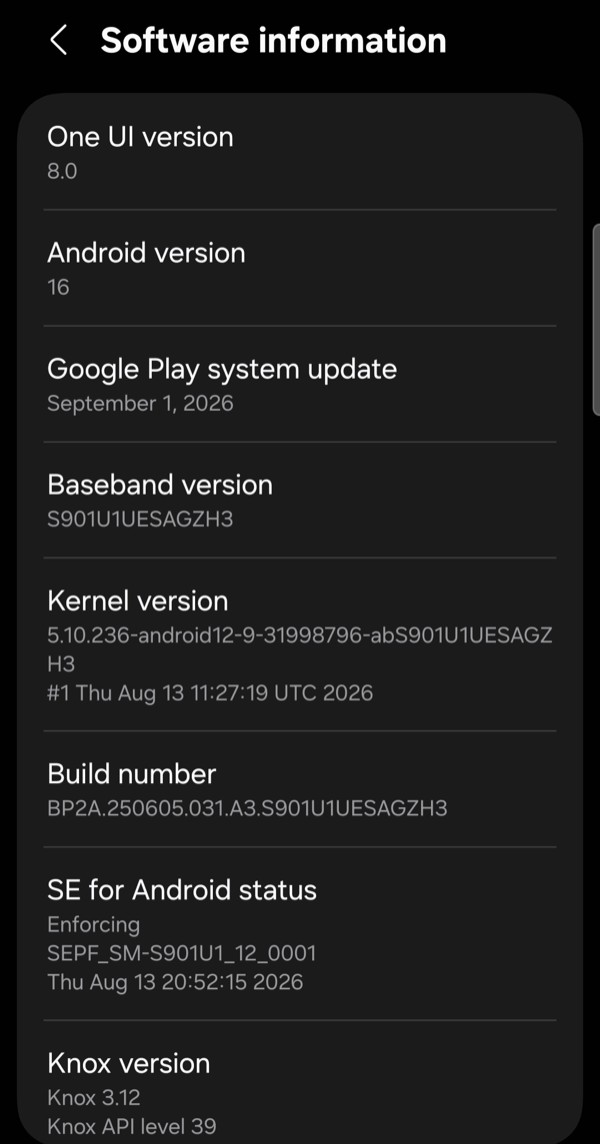
| Phone | Where to tap seven times |
|---|---|
| Samsung | Settings → About phone → Software information → Build number |
| Google Pixel | Settings → About phone → Build number |
| OnePlus | Settings → About device → Version → Build number |
| Xiaomi, Redmi, POCO | Settings → About phone → OS version (or MIUI version) |
| Other phones | Search Settings for "Build number" |
Step 2: Turn on USB debugging
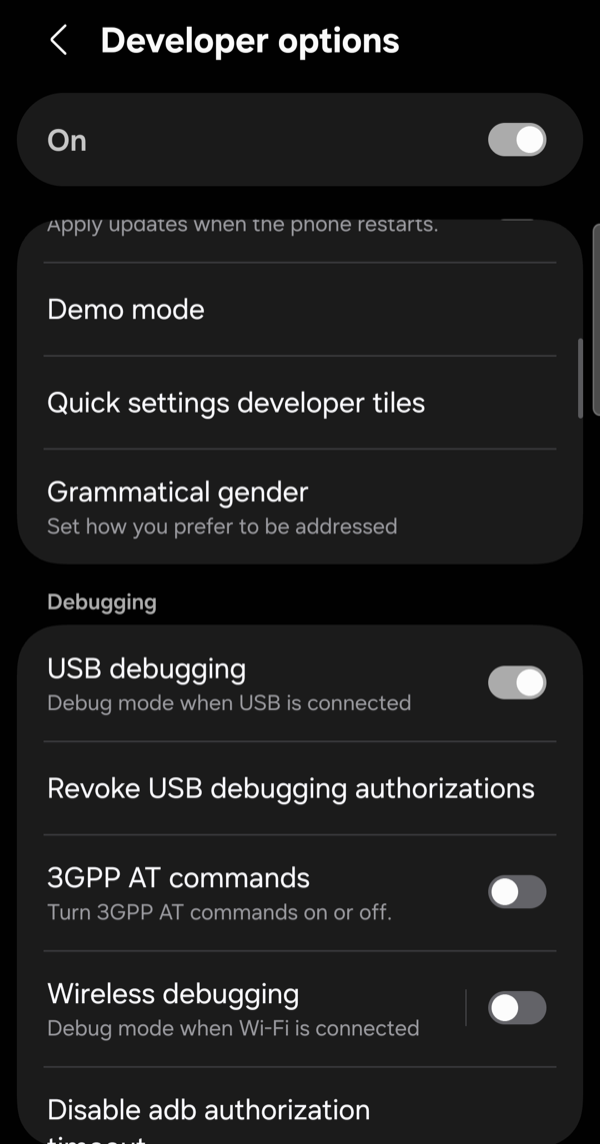
- Open Settings → Developer options. On Samsung it sits at the very bottom of Settings; on other phones it may be under System.
- Make sure the switch at the top says On.
- Scroll to the Debugging section and switch on USB debugging.
Step 3: Plug in the phone and paste the prompt
Plug the phone into your computer with a data cable. Open your AI assistant in any folder, paste this prompt, and press Enter. Phase 0 gets everything ready, so you don't need to install or set up anything first.
The assistant stops and asks for you only when it needs your hands. The first time it connects, your phone shows Allow USB debugging? with the computer's fingerprint. Check that it's your computer, then tap Allow. Leave Always allow from this computer unticked for a one-off audit.
Act as a senior Android security specialist and mobile forensic investigator.
My Android phone is connected to this computer over USB with USB debugging
turned on. Get everything ready yourself, then run a comprehensive, READ-ONLY
security audit to look for spyware, stalkerware, unauthorized monitoring,
remote access and malicious apps.

PHASE 0 - Get ready (do everything you can yourself)
- Check whether ADB is installed (adb version). If not, tell me the install
  command for my operating system and run it after I approve. Never type or ask
  for my password: if a step needs sudo or an admin prompt, tell me what to do
  and wait.
- Run adb devices. If the phone shows "unauthorized", ask me to unlock it and
  tap Allow on the phone, then check again. If it shows "offline", run
  adb kill-server and adb start-server. If the list is empty, help me check the
  cable (it must carry data), the USB mode (File transfer) and the port.
- Stop and wait whenever you need my hands on the phone. Continue only when
  the phone is listed as "device".

PHASE 1 - Device: get manufacturer, model, Android version, build and security
patch level.

PHASE 2 - Apps: list all packages with install source and install date. Flag
apps installed outside the official stores, apps with no launcher icon, recent
installs, and apps running in the background.

PHASE 3 - Surveillance capabilities: check accessibility services, device
admins, notification listeners, usage access, mic/camera/location/SMS/contacts/
call-log permissions, screen capture, "install unknown apps", "draw over other
apps", VPN and device-management configuration. Pay particular attention to
apps that COMBINE several of these.

PHASE 4 - System integrity: security patch, bootloader and verified boot state,
root indicators, suspicious system apps, USB debugging and developer settings.

PHASE 5 - Network: proxy and DNS settings, VPN configuration, listening
sockets, remote-access apps. Do not treat an unfamiliar connection as malicious
without evidence.

PHASE 6 - Evidence: for every suspicious finding give the package name, what it
does, what it could access, why it is suspicious, a classification (confirmed
malicious / suspicious / normal) and the exact command that supports it.

PHASE 7 - Report: overall assessment, confirmed threats, suspicious apps,
excessive permissions, monitoring capabilities, vulnerabilities, remediation
steps, and a list of what could NOT be inspected and why. Save it as a
Markdown file in the current folder.

PHASE 8 - Wrap up: tell me exactly what to switch off on the phone (USB
debugging, and Revoke USB debugging authorizations). You may offer to turn USB
debugging off with ADB, but only if I approve.

STRICT RULES
- Read-only commands only during the audit. Do not uninstall, disable, change
  settings, reset, or install anything on the phone.
- Do not read or show my messages, photos, passwords or tokens.
- Leave my phone number, IMEI and serial number out of the report.
- Ask for my approval before ANY corrective action.
- Explain the limitations of each inspection method. Do not claim the phone is
  "clean"; say only what the evidence supports.

Start with Phase 0, then proceed phase by phase.
Prefer to set up ADB yourself?
ADB (Android Debug Bridge) is Google's free command-line tool for talking to a phone. It comes in the "platform-tools" package.
| Mac | brew install --cask android-platform-tools |
| Windows | winget install Google.PlatformTools |
| Linux | sudo apt install android-tools-adb |
No package manager? Download platform-tools from Google, unzip it, and run adb from that folder. Then run adb devices. You should see one line with a serial number and the word device. If it says something else:
| You see | Do this |
|---|---|
unauthorized | Unlock the phone and tap Allow on the prompt. If there is no prompt, unplug, tap Revoke USB debugging authorizations, and plug in again. |
| Empty list | Try another cable or USB port (many cables only charge), and set the USB mode to File transfer. On Windows you may need your phone maker's USB driver. |
offline | Run adb kill-server, then adb devices again. |
Read each command before you approve it. The prompt asks for read-only checks, but you are the safety net. Anything with uninstall, disable, settings put, pm clear, rm or reset in it is not part of an audit. Say no.
What a good report looks like
- Evidence for every claim, not just "looks fine".
- Three clear labels: normal, suspicious, confirmed malicious. Big permission lists on apps like Google, WhatsApp or your carrier's app are usually normal. Permissions alone are not proof.
- A "could not inspect" section. If the report doesn't admit what it couldn't see, it is overselling.
Red flags worth a closer look
- An accessibility service or notification listener you don't recognise. These can read the screen and your notifications.
- A device admin or device owner you didn't set up.
- An app with no launcher icon that also holds microphone, camera, location or SMS access.
- An app from outside the official stores that you didn't install yourself.
- A proxy, an always-on VPN or a user-installed certificate you didn't add.
Step 4: Turn debugging off
When the report is done, the assistant tells you what to switch off. On the phone:
- Open Settings → Developer options.
- Tap Revoke USB debugging authorizations, then OK. This one can only be done on the phone.
- Switch USB debugging off. You can switch the whole Developer options toggle off too. The assistant may offer to turn USB debugging off for you over ADB; that works on some phones, so check the switch afterwards.
Leaving USB debugging on lets any computer you've authorised read a lot from an unlocked phone. Turn it off when you're done.
What this can't see
- Secure Folder and work profiles. ADB can't enter them. Open them on the phone and review the apps by hand.
- User-installed certificates. Check Settings → Security and privacy → More security settings → View security certificates (the path varies by phone).
- What each app sends over the network. ADB shows what's listening, not the traffic.
- The code inside apps. The audit judges by name, source, signature and permissions, not by reading the app.
- Firmware implants and advanced commercial spyware. These are built to hide from tools like ADB. If you're a likely target, use a dedicated forensic service.
If you think someone is stalking you: removing stalkerware can alert the person who installed it. If you could be in danger, contact a domestic-violence or digital-safety organization before you change anything on the phone.
Keep the report private
Reports and screenshots can expose your Wi-Fi name, carrier, installed apps and device identifiers. The About phone screen shows your IMEI and serial number, so crop or skip it before you share a screenshot. Don't post a raw report publicly.
Frequently asked questions
Can ADB find spyware on an Android phone?
It finds the common kinds: stalkerware apps, apps with accessibility, device-admin or notification-listener access, sideloaded apps, and hidden apps with no icon. It cannot see firmware-level implants or advanced commercial spyware.
Is it safe to leave USB debugging on?
No. Turn it on for the audit, then turn it off and revoke the authorizations.
Will the audit change anything on my phone?
Not if the assistant sticks to read-only commands, which the prompt requires. You approve every command, so refuse any that uninstall, disable or change something.
Can the AI do the phone setup for me?
No. Turning on Developer options, switching on USB debugging and tapping Allow can only be done by hand on the phone. Everything on the computer side, from installing ADB to writing the report, the assistant does.
Do I need to root the phone?
No. The audit uses the standard shell ADB gives you. The trade-off is the blind spots listed above, which you check by hand on the phone.
Does it work on an iPhone?
No. ADB is Android-only.
I found something suspicious. What now?
Don't uninstall in a hurry. Note the package name, ask the assistant what it is and why it's flagged, and read the app's listing. If you're confident it's unwanted and you're not in a risky situation, remove it from Settings → Apps, then change the passwords for your accounts from a different, clean device.