Find it fast
Press ⌘⇧V on macOS or Ctrl+Shift+V on Windows, type to search, navigate with the arrow keys, and restore the selected item to your clipboard.
 GuruHat
ClipHat keeps your clipboard history close, so text, links, images, and notes are ready when you need them again.
● Free & open source · macOS 13+ · Windows 10+ · No account
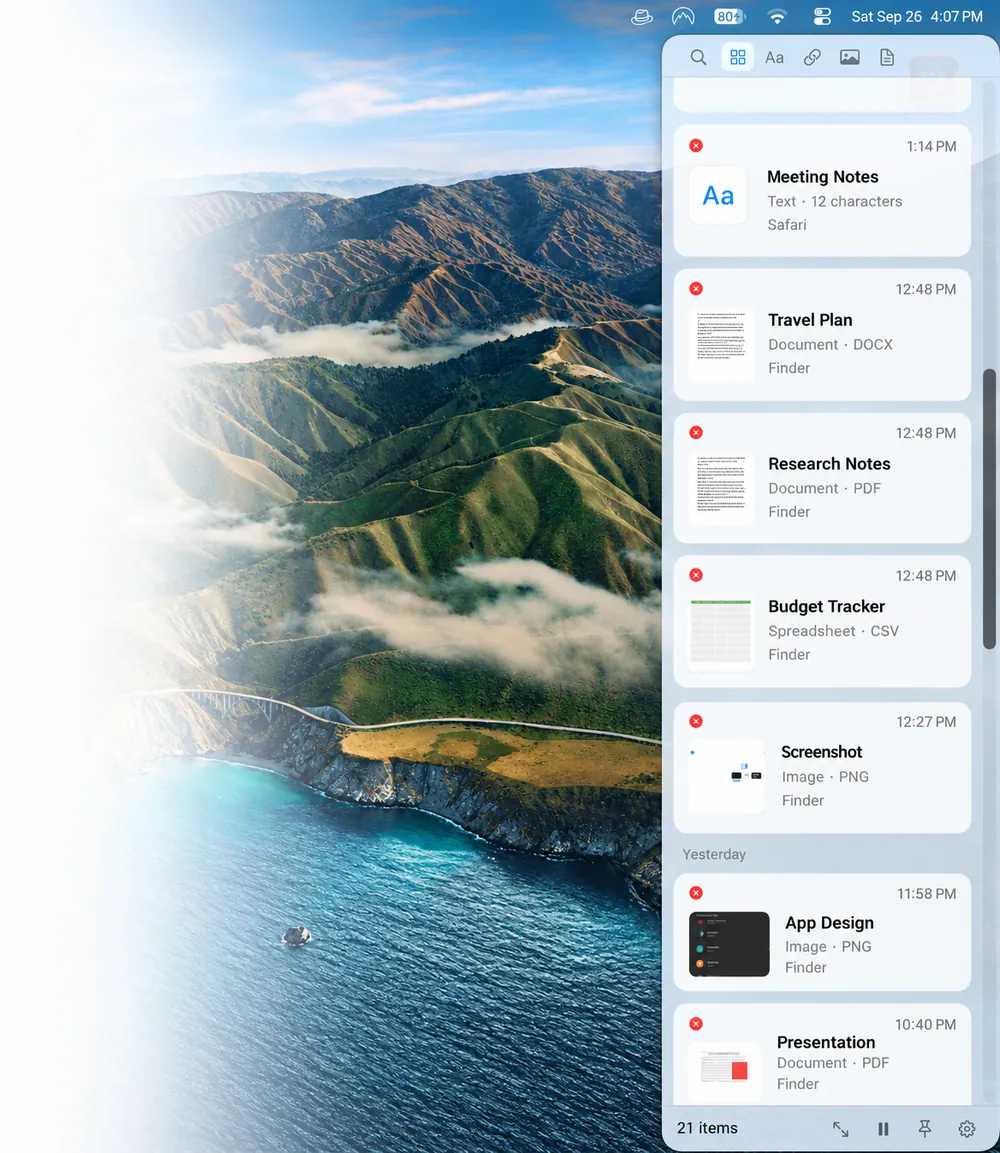
ClipHat is a small native utility for the useful things you copied five minutes—or five days—ago. It stays out of the way until you need it.
Press ⌘⇧V on macOS or Ctrl+Shift+V on Windows, type to search, navigate with the arrow keys, and restore the selected item to your clipboard.
Pin a clip to keep it around. Clear unpinned history whenever you want without touching what you saved.
Capture copied text, web links, images, PDFs, DOCX, CSV, XLSX, and other regular files—not just plain text.
Narrow history to text, links, media, or documents, then search within that result without losing your place.
See image thumbnails and document previews. On macOS, Quick Look provides supported file previews; switch to larger cards anytime.
Drag text, links, images, and documents directly into Finder, your editor, or another app. Images and documents export as real files.
Open a saved web link in your default browser, or restore it to the clipboard to paste it wherever you need it.
History lives in a local SQLite database. No account, cloud sync, analytics, or network code—and sensitive markers are skipped.
Pause capture whenever you want, choose the content types to keep, and exclude password managers or any other app in Settings.
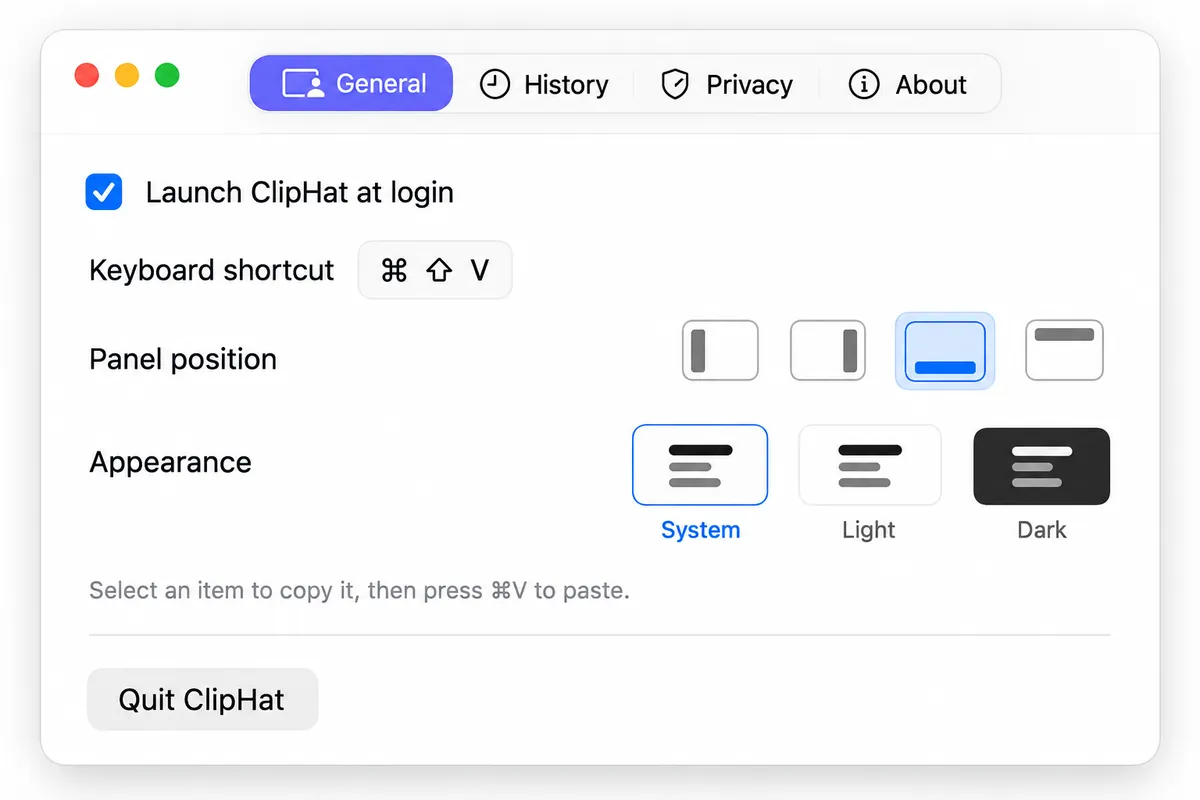
Attach the picker to the left, right, top, or bottom of the active screen; choose light, dark, or system appearance; and keep it open when needed.
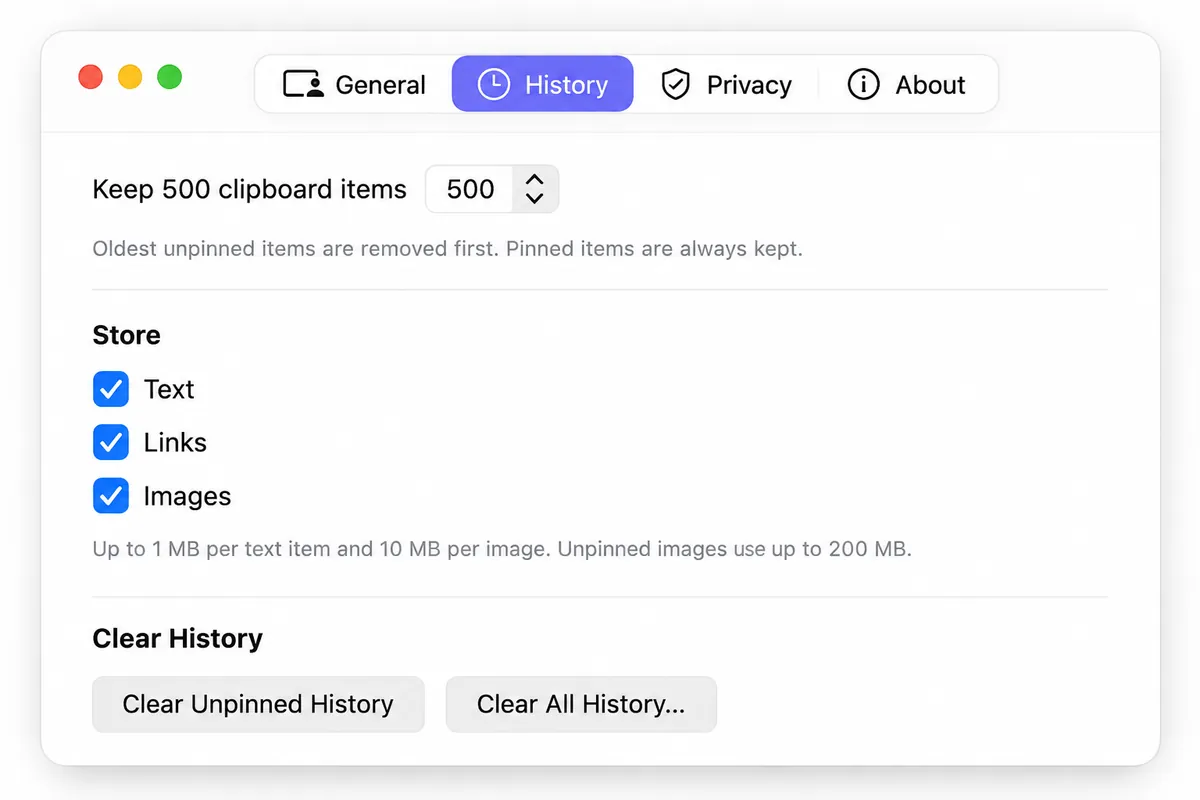
Set the retention limit, clear unpinned history, and keep pinned clips safe. By default, ClipHat keeps the latest 500 items.
Enable launch at login so your clipboard history is ready for the next useful thing you copy.
The normal paste stays normal. ClipHat simply makes one earlier copy available again when you need it.
ClipHat notices newly copied text, links, and images while respecting privacy markers and ignored apps.
Search or scan your history, then select an entry. Escape closes the picker; ⌘F puts the cursor in search.
ClipHat restores the item to your clipboard and returns focus to your previous app. Press ⌘V (or Ctrl+V) as usual.
Configure launch at login, panel placement, appearance, retention, and captured types right inside the native app.
Download ClipHat, move it to Applications, and open it once. Your clipboard history will be ready for the next thing you forget you copied.
macOS requires 13 or later and uses a DMG installer. Windows requires 10 (version 1903 or later) or 11 (x64) and uses a 3 MB EXE installer.